How to Sign and Annotate PDFs Directly in Google Chrome
Google Chrome recently introduced a built-in feature that lets you draw, write, and sign directly onto PDF files without needing to download external software like Adobe Acrobat or print out physical papers.
While it sounds amazing, let’s look at the completely honest pros and cons so you know exactly what to expect.
The Good (The Pros) 👍
No Extra Software Needed: You don’t need to install heavy apps or pay for premium PDF editors. It works right inside your browser.
Completely Free: It doesn’t lock basic features like “saving changes” behind a paywall.
Super Fast: Perfect for quick tasks like signing a rental agreement, filling out a basic form, or highlighting a sentence in a school document.
Saves Paper: No more “print, sign, scan, send.”
The Bad (The Cons) 👎
Basic Drawing Only: The signature tool is just a free-hand pen. If you are using a mouse, your signature might look like a messy scribble. It lacks “type-to-sign” features or secure digital certificates.
No Advanced Editing: You cannot edit the pre-existing text inside the PDF. You can only draw or highlight over it.
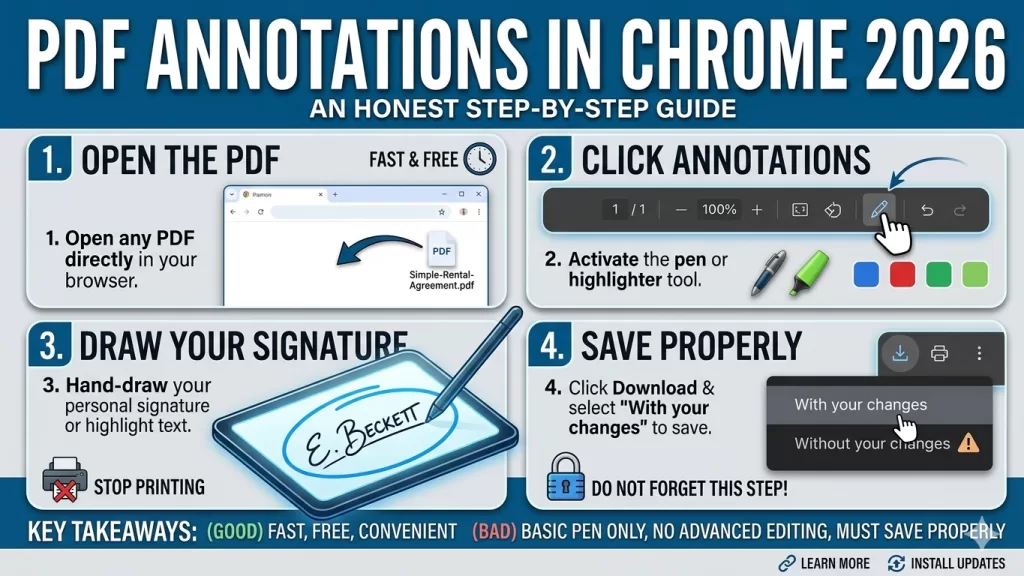
Risk of Losing Work: If you accidentally close the Chrome tab before clicking the Save button and selecting “With your changes,” your progress is gone forever.
Step-by-Step: How to Use It
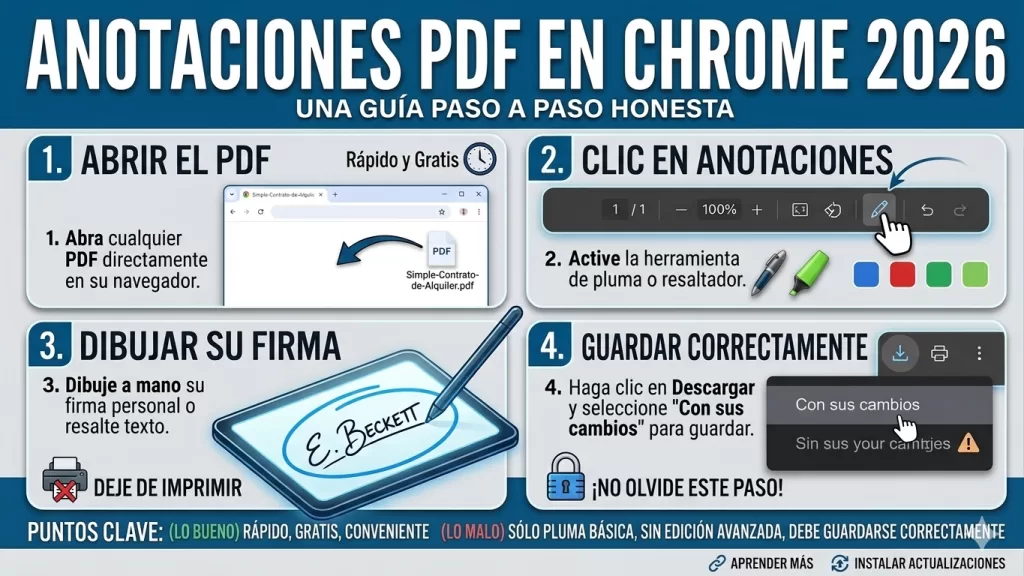
Open the PDF: Drag and drop any PDF file into a Google Chrome tab.
Click Annotate: Look for the Pen icon (Annotations) in the top toolbar.
Customize: Choose whether you want a pen or a highlighter, and pick your thickness and color.
Save Properly: When you are done, click the Download/Save icon and make sure to click “With your changes” so your signatures are saved.
Disclaimer: This webpage is for informational purposes only. We are not officially affiliated with Google Chrome. While Chrome’s PDF tool is great for everyday use, it does not provide legally binding cryptographic digital signatures (like DocuSign). For official, high-security legal or financial documents, consult your local legal guidelines to ensure hand-drawn browser signatures are accepted.